Post
GPUs Overclocking Guide: Squeeze Maximum Performance from Your Graphics Card
Jun
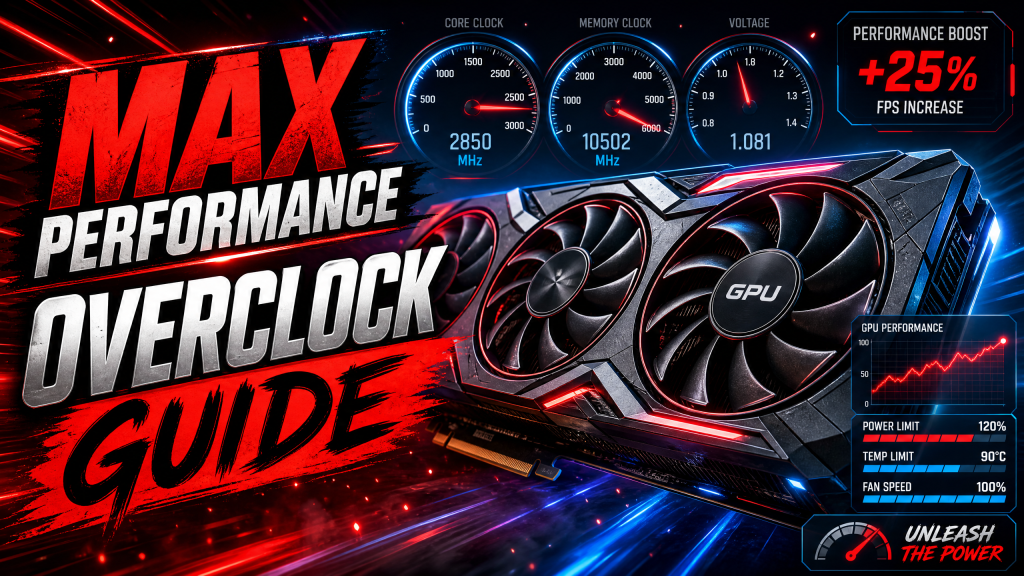
GPUs Overclocking Guide 2025: How to Squeeze Maximum Performance from Your Graphics Card
Modern graphics cards are incredibly powerful, but most GPUs still have untapped performance potential hidden behind factory settings. Whether you’re trying to gain extra frames in competitive games, improve 4K performance, or simply maximize the value of your hardware investment, GPU overclocking remains one of the most effective ways to achieve higher performance without purchasing a new graphics card.
The concept of overclocking has evolved significantly over the years. Unlike older GPUs that required complex BIOS modifications and risky voltage adjustments, today’s graphics cards feature sophisticated boosting algorithms, thermal protections, and monitoring tools that make overclocking safer and more accessible than ever. With the right approach, many users can gain between 5% and 15% additional performance completely free of charge.
This comprehensive guide explains everything you need to know about GPU overclocking in 2025, including preparation, software tools, testing methods, stability checks, temperature management, and advanced optimization techniques.
What Is GPU Overclocking?
GPU overclocking is the process of increasing the operating frequency of a graphics card beyond its factory specifications. A GPU contains several key components that can be tuned:
- Core Clock: The frequency at which the graphics processor operates.
- Memory Clock: The speed of the video memory (VRAM).
- Power Limit: The maximum amount of power the GPU is allowed to consume.
- Voltage: The electrical power supplied to the GPU core.
- Fan Curve: The cooling profile that determines fan speed based on temperature.
By carefully increasing these values, users can achieve higher frame rates, better benchmark scores, and improved responsiveness in demanding applications.
The reason overclocking works is simple: manufacturers leave performance headroom to ensure every GPU remains stable under various conditions. Since every chip is slightly different due to manufacturing variations, many GPUs can operate reliably at speeds above their official specifications.
Is GPU Overclocking Safe?
One of the most common concerns among beginners is whether overclocking can damage a graphics card. The good news is that modern GPUs include multiple layers of protection designed to prevent catastrophic failure.
If a GPU becomes unstable due to excessive clock speeds, the most likely outcomes are:
- Game crashes
- Driver resets
- System freezes
- Visual artifacts
- Automatic frequency throttling
Modern NVIDIA, AMD, and Intel GPUs continuously monitor temperatures, voltage, and power consumption. If limits are exceeded, the GPU automatically reduces performance to protect itself.
While extreme overclocking with modified BIOS files and excessive voltage can reduce hardware lifespan, moderate overclocking performed through standard software is generally considered safe for everyday users.
Benefits of GPU Overclocking
There are several reasons why gamers and enthusiasts choose to overclock their graphics cards.
Higher Frame Rates
The most obvious benefit is improved gaming performance. A successful overclock can increase average FPS by 5% to 15%, depending on the game and hardware.
For example:
- 100 FPS may become 110 FPS
- 144 FPS may become 160 FPS
- 60 FPS may become 68 FPS
These improvements can make gameplay feel smoother, especially on high-refresh-rate monitors.
Extended Hardware Lifespan
Overclocking can delay the need for a GPU upgrade. If a graphics card is beginning to struggle with newer games, a moderate overclock may provide enough performance to remain competitive for another year or two.
Better Value
Since overclocking is essentially free, it improves the overall value of your GPU purchase. Many factory-overclocked models sold by manufacturers use the same silicon that consumers can manually tune themselves.
Tools Required for GPU Overclocking
Several excellent software tools are available for GPU tuning.
MSI Afterburner
MSI Afterburner remains the most popular GPU overclocking software available today. It supports nearly every NVIDIA and AMD graphics card regardless of manufacturer.
Key features include:
- Core clock adjustments
- Memory clock tuning
- Voltage control
- Power limit modifications
- Custom fan curves
- Real-time monitoring
RivaTuner Statistics Server (RTSS)
Typically bundled with MSI Afterburner, RTSS provides an in-game overlay showing:
- GPU temperature
- GPU usage
- Clock speeds
- Frame rate
- Power consumption
- CPU utilization
Benchmarking Software
Reliable benchmarks are essential for measuring performance improvements.
- 3DMark Time Spy
- 3DMark Steel Nomad
- Unigine Superposition
- Unigine Heaven
- Built-in game benchmarks
Step 1: Establish a Baseline
Before making any changes, benchmark your GPU at stock settings.
Record the following:
- Average FPS
- 1% low FPS
- Maximum temperature
- Boost clock frequency
- Power consumption
These baseline numbers allow you to accurately measure the effectiveness of your overclock.
Run several benchmarks and play your favorite games for at least 20 to 30 minutes. This confirms the GPU is stable before modifications begin.
Step 2: Increase the Power Limit
The power limit is often the easiest source of additional performance.
Modern GPUs frequently hit their power limits before reaching thermal limits. By increasing the power limit, you allow the GPU to maintain higher boost frequencies under load.
In MSI Afterburner:
- Open the application.
- Locate the Power Limit slider.
- Increase it to the maximum available value.
- Apply changes.
Many GPUs gain 2% to 5% performance from this adjustment alone.
Step 3: Overclock the GPU Core
The core clock directly impacts shader performance and overall rendering capability.
Start conservatively:
- Add +50 MHz.
- Run benchmarks.
- Monitor stability.
- Increase by another +25 MHz to +50 MHz.
Continue until instability appears.
Signs of instability include:
- Driver crashes
- Application freezes
- Visual corruption
- Black screens
When instability occurs, reduce the clock speed slightly and retest.
Most modern GPUs achieve:
- NVIDIA RTX cards: +100 to +250 MHz
- AMD Radeon cards: +100 to +300 MHz
- Intel Arc cards: +100 to +200 MHz
Step 4: Overclock VRAM
Memory bandwidth is increasingly important for modern games, especially at 1440p and 4K resolutions.
Begin with:
- +250 MHz memory offset
- Test stability
- Increase gradually
Depending on the GPU and memory type, many cards can handle:
- +500 MHz
- +750 MHz
- +1000 MHz or more
Memory instability often appears as:
- Texture corruption
- Colored pixels
- Flickering objects
- Benchmark failures
Always prioritize stability over chasing maximum numbers.
Step 5: Stress Testing
A benchmark that runs successfully for five minutes doesn’t guarantee long-term stability.
After finding your preferred overclock:
- Run 3DMark multiple times.
- Run Unigine Superposition for 30 minutes.
- Play demanding games for several hours.
- Monitor temperatures continuously.
Popular testing games include:
- Cyberpunk 2077
- Alan Wake 2
- Black Myth: Wukong
- Microsoft Flight Simulator
- Starfield
These titles place heavy loads on both GPU core and memory subsystems.
Temperature Management
Heat is the primary limitation for most overclocking attempts.
Ideal gaming temperatures:
- Below 70°C: Excellent
- 70°C to 80°C: Good
- 80°C to 85°C: Acceptable
- Above 85°C: Consider improving cooling
To reduce temperatures:
- Improve case airflow
- Clean dust filters
- Adjust fan curves
- Upgrade case fans
- Replace thermal paste on older GPUs
Good airflow can often improve overclocking potential more than voltage adjustments.
Undervolting: The Hidden Performance Trick
One of the most popular modern optimization techniques is undervolting.
Instead of increasing voltage, undervolting reduces voltage while maintaining similar clock speeds.
Benefits include:
- Lower temperatures
- Reduced power consumption
- Less fan noise
- Higher sustained boost clocks
Many RTX 40-series, RTX 50-series, and Radeon RX 7000/9000 GPUs respond exceptionally well to undervolting.
In some cases, users achieve equal performance while reducing power consumption by 50 to 100 watts.
Expected Performance Gains
Results vary depending on GPU architecture, cooling solution, and silicon quality.
| GPU Category | Typical Gain |
|---|---|
| Entry-Level GPUs | 5% – 8% |
| Mid-Range GPUs | 7% – 12% |
| High-End GPUs | 5% – 10% |
| Memory-Limited Scenarios | Up to 15% |
While these gains may seem modest, they are effectively free performance and can noticeably improve gameplay, particularly when paired with high-refresh-rate displays.
Common Mistakes to Avoid
- Increasing voltage too aggressively.
- Ignoring temperature monitoring.
- Skipping long-term stability testing.
- Using inadequate case airflow.
- Copying another user’s settings exactly.
- Assuming benchmark stability equals gaming stability.
Every GPU is unique. What works for one card may not work for another, even if they are the same model.
Final Verdict
GPU overclocking remains one of the best ways to maximize the value of your graphics card in 2025. Thanks to modern software tools, sophisticated thermal management, and built-in safety protections, overclocking is more accessible than ever for both beginners and experienced enthusiasts.
By carefully increasing power limits, tuning core and memory clocks, testing stability, and managing temperatures, most users can unlock an additional 5% to 15% gaming performance without spending a single dollar on new hardware.
Whether you’re using an NVIDIA GeForce RTX GPU, an AMD Radeon card, or Intel Arc graphics, a thoughtful overclock can provide smoother gameplay, higher frame rates, and a better overall gaming experience. Take your time, test thoroughly, and enjoy the free performance waiting inside your GPU.
