
Post
GPU Temperatures Explained: What’s Normal and When to Worry
Jun
GPU Temperatures Explained: What’s Normal and When to Worry
If you’ve ever monitored your graphics card while gaming, rendering videos, or running stress tests, you’ve probably noticed temperatures climbing much higher than most other components in your PC. For many users, seeing numbers like 80°C, 90°C, or even higher can be alarming. However, modern GPUs are specifically engineered to operate under high thermal loads, and temperatures that may seem dangerous at first glance are often completely normal.
Understanding GPU temperatures is important for every PC owner. Proper temperature management can improve performance, reduce noise, prevent thermal throttling, and potentially extend the lifespan of your hardware. At the same time, worrying unnecessarily about perfectly normal GPU temperatures can lead users to spend money on cooling upgrades they don’t actually need.
This guide explains normal GPU temperature ranges, hotspot GPU temperatures, warning signs of thermal problems, common causes of overheating, and practical solutions to keep your graphics card operating safely and efficiently.
Why GPUs Generate So Much Heat
Modern graphics cards are among the most power-hungry components in a computer. High-end GPUs such as the RTX 5090 or Radeon RX 8900 XTX can consume hundreds of watts under full load.
Every watt of electrical power eventually becomes heat. When a graphics card performs billions of calculations per second to render complex game environments, ray-traced lighting, and AI-enhanced graphics, significant heat generation is inevitable.
Unlike CPUs, which often operate in short bursts of heavy activity, GPUs frequently sustain high utilization for extended periods. During gaming sessions, rendering projects, or AI workloads, a graphics card may remain near maximum load for hours at a time.
Because of this, GPU manufacturers design their products with thermal management systems specifically intended to handle high operating temperatures safely.
Normal GPU Temperature Ranges
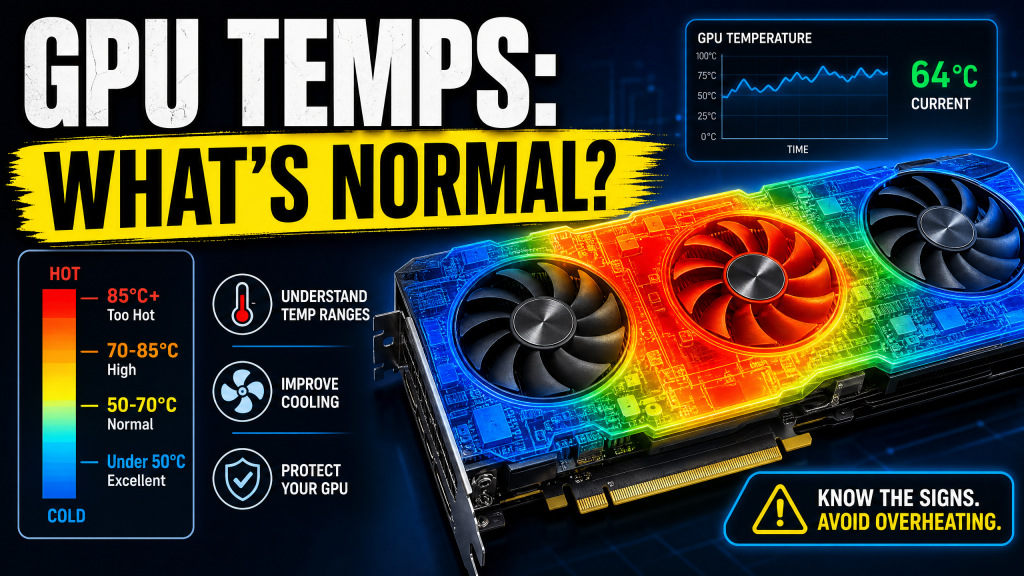
One of the most common misconceptions is that any temperature above 70°C is dangerous. In reality, modern GPUs are designed to operate safely well beyond that threshold.
Idle Temperatures
When your computer is performing light tasks such as:
- Web browsing
- Watching videos
- Office applications
- Email and messaging
most GPUs will operate between:
- 30°C to 50°C
Some modern graphics cards even stop their fans completely during low-load situations to reduce noise, allowing idle temperatures to sit slightly higher without concern.
Gaming Temperatures
During gaming sessions, temperatures naturally rise.
Typical gaming temperatures include:
- 70°C to 85°C = Completely normal
- 85°C to 90°C = Still generally safe
- 90°C+ = Worth monitoring
Many factory-overclocked graphics cards intentionally operate in the upper 70s or low 80s because manufacturers balance temperature, noise, and performance.
A GPU running at 82°C while gaming is usually behaving exactly as intended.
Heavy Workload Temperatures
Workloads such as:
- 3D rendering
- Video encoding
- Machine learning
- Cryptographic calculations
- Stress testing
can push temperatures even higher than typical gaming.
In these scenarios, temperatures between:
- 80°C and 90°C
are not uncommon and generally remain within manufacturer specifications.
Understanding GPU Hotspot and Junction Temperatures
Modern GPUs often report more than one temperature reading.
The standard “GPU Temperature” displayed by monitoring software represents an average or edge temperature measured by sensors on the graphics processor.
However, the hottest point on the GPU may be significantly warmer.
AMD Junction Temperature
AMD GPUs include a Junction Temperature sensor, sometimes called Hotspot Temperature.
This measurement represents the hottest area of the GPU die.
It is completely normal for AMD hotspot temperatures to be:
- 15°C to 25°C higher than core temperatures
AMD officially designs many RDNA GPUs to tolerate hotspot temperatures up to:
- 110°C Junction Temperature
Although this number sounds alarming, it remains within AMD’s operating specifications.
NVIDIA Hotspot Temperature
Recent NVIDIA graphics cards also provide hotspot temperature monitoring.
For most NVIDIA GPUs:
- Below 95°C = Excellent
- 95°C to 100°C = Normal
- 100°C to 105°C = Worth monitoring
- Above 105°C = Investigate cooling
- Above 110°C = Potential issue
Hotspot temperatures naturally exceed standard GPU temperatures because they measure localized heat concentrations.
When Should You Actually Worry?
Temperature numbers alone do not always indicate a problem.
Instead, focus on symptoms that suggest temperatures are negatively affecting performance or stability.
Thermal Throttling
Thermal throttling occurs when a GPU automatically reduces clock speeds to prevent overheating.
This protects the hardware but reduces performance.
Signs of throttling include:
- Sudden FPS drops
- Lower benchmark scores
- Reduced GPU clock speeds
- Inconsistent performance
Monitoring software such as:
- MSI Afterburner
- HWiNFO64
- GPU-Z
can reveal whether thermal throttling is occurring.
Unexpected Crashes
Excessive temperatures can cause:
- Game crashes
- Driver failures
- Black screens
- System instability
If these issues consistently occur under heavy GPU load, overheating should be investigated.
Thermal Shutdowns
Modern GPUs include emergency protection mechanisms.
If temperatures exceed safe limits, the graphics card may:
- Shut down
- Disable video output
- Trigger a system restart
This is rare but indicates a serious cooling problem requiring immediate attention.
Common Causes of High GPU Temperatures
Poor Case Airflow
The most common cause of excessive GPU temperatures is inadequate airflow.
A graphics card requires a constant supply of cool air.
Problems often include:
- Too few intake fans
- Blocked front panels
- Poor cable management
- Restricted exhaust airflow
Without proper airflow, the GPU may repeatedly draw in its own hot exhaust air, causing temperatures to rise significantly.
Dust Buildup
Dust acts like insulation.
When dust accumulates inside heatsink fins, airflow decreases and cooling efficiency drops.
Heavy dust accumulation can increase GPU temperatures by:
- 10°C to 25°C
Regular cleaning helps maintain optimal cooling performance.
Old Thermal Paste
Thermal paste transfers heat between the GPU die and cooler.
Over time, thermal paste dries out and becomes less effective.
This process typically occurs over:
- 3 to 5 years
Replacing degraded thermal paste can often restore temperatures close to original factory performance.
High Ambient Room Temperature
Your GPU cannot cool itself below the temperature of the surrounding air.
A room temperature increase from:
- 20°C to 30°C
can easily raise GPU temperatures by a similar amount.
Environmental conditions play a major role in cooling effectiveness.
How to Improve GPU Temperatures
Optimize Fan Curves
Many graphics cards prioritize low noise levels.
Using software such as MSI Afterburner, you can create a custom fan curve that increases fan speed earlier.
Benefits often include:
- 5°C to 10°C lower temperatures
- Reduced hotspot temperatures
- Less thermal throttling
The tradeoff is increased fan noise.
Improve Case Airflow
Adding additional intake and exhaust fans is often the most effective cooling upgrade.
A balanced airflow setup typically includes:
- 2–3 front intake fans
- 1 rear exhaust fan
- Optional top exhaust fans
Many users see dramatic temperature improvements simply by improving airflow.
Clean the GPU
Routine maintenance is important.
Using compressed air every:
- 6 to 12 months
helps prevent dust buildup and maintains cooling performance.
Always ensure the system is powered off before cleaning.
Replace Thermal Paste
For older graphics cards, replacing thermal paste can be highly effective.
Popular thermal compounds include:
- Thermal Grizzly Kryonaut
- Arctic MX-6
- Noctua NT-H2
- Corsair XTM70
A properly performed repaste can reduce temperatures by:
- 5°C to 20°C
depending on the condition of the original paste.
Do Lower Temperatures Always Mean Better Performance?
Not necessarily.
Modern GPUs are designed to automatically optimize clock speeds based on available thermal headroom.
Reducing temperatures may increase boost clocks slightly, but a GPU running at 80°C is not inherently unhealthy.
Chasing extremely low temperatures often results in:
- Higher fan noise
- Increased cooling costs
- Diminishing performance returns
The goal should be maintaining stable temperatures rather than achieving the lowest possible numbers.
Safe Temperature Guidelines
For quick reference:
| Temperature | Status |
|---|---|
| 30°C–50°C | Normal Idle |
| 60°C–75°C | Excellent Gaming Temperature |
| 75°C–85°C | Normal Gaming Temperature |
| 85°C–90°C | Safe but Worth Monitoring |
| 90°C+ | Investigate Cooling |
| 100°C+ Hotspot | Monitor Closely |
| 110°C Hotspot | Potential Thermal Problem |
Final Thoughts
GPU temperatures often appear intimidating, especially to new PC users, but modern graphics cards are engineered to operate safely under significant thermal loads. Temperatures between 70°C and 85°C during gaming are completely normal, while hotspot temperatures substantially higher than core temperatures are expected behavior on many modern GPUs.
The key indicators of a genuine problem are thermal throttling, instability, crashes, and sustained temperatures that approach manufacturer limits. Regular maintenance, good airflow, dust removal, and occasional thermal paste replacement can keep a graphics card running efficiently for years.
Rather than focusing solely on temperature numbers, pay attention to performance, stability, and overall system behavior. A GPU operating at 82°C while delivering smooth, stable performance is often functioning exactly as its designers intended.
